Teach and record
While you teach, spoken text is captured per slide. You can add captions if you want students to read along as well as listen.
Keep the slides, the explanation and the questions in one lesson. Use it again when you are ill, when a student missed the room, when someone wants to look back, or when a colleague wants to see how you taught it.
You keep the lesson in Sendsteps: slides, text you can edit, and the same interactive questions. Students open it on their own device when they missed class, want to look back, or cannot be in the room. Those answers come back at lesson level, so Validate can include them. This does not replace being there. A longer questionnaire after the lesson lives with Questionnaires.

Create, Engage, Validate, Improve stay the model. Asynchronous learning is how the same lesson stays available when someone missed the room, wants to look back, or cannot teach that session live.
The explanation and the questions belong together. Share the lesson you already taught, not a separate recording without the interaction.
While you teach, spoken text is captured per slide. You can add captions if you want students to read along as well as listen.
The text appears under the slides. You read it and correct it. Nothing is synthesised until you agree. Transcription is not flawless. That check is the point.
Share the lesson. The student listens at their own pace and answers the same interactive questions. Answers come back at lesson level.
Without this, understanding data stops at whoever sat in class. Hybrid groups, flipped classroom sessions, and anyone who missed a lecture fall out of the picture. Improve then recommends from an incomplete group.
With this, absent students answer the same questions. Those responses join the lesson, so Validate can include them and Improve can work from a fuller picture. AI recommends, teachers decide.

A missed session does not have to be taught again to the whole group. The same lesson stays in the library — for a student who was away, for a look-back, or for a colleague if you are ill.
The lesson is still there. A colleague can share it, and students still answer the same questions. You are not asked to repeat the session from scratch.
Students who cannot be in the room follow it in their own time. It is also there if they need to hear an explanation again. It is not a reason to stop coming to class.
The lesson is a reusable record: slides, questions, and the text you approved. Programme leads get the same teaching back, without a new live session.
Asynchronous learning is for the teacher's lesson. Sendsteps does not synthesise a student voice as part of this flow. If a voice recording is uploaded, it must be with the explicit consent of that person — including where the person is a minor, under the rules that apply to your institution. The privacy statement sets this out.
The institution or teacher who uploads a voice recording is the controller for that content. They are responsible for the explicit consent of the person whose voice it is. Sendsteps processes the recording as processor, on that instruction. A royalty-free AI voice does not use your recording and does not need that consent. How you record consent inside your institution is your process; the legal basis is in the privacy statement.
A voice recording sits in your account as lesson content. Sendsteps processes it on your instruction. It is not used as a default AI voice for other customers. Delete the lesson to remove the recording with it. Retention after the agreement ends is in the privacy statement.
Voice recordings for this feature are stored as content data, for as long as the lesson stays in the account. Delete the lesson to remove them with it. After the agreement ends, remaining recordings are erased within thirty days, as in the privacy statement.
Voice recordings are processed as content data under Sendsteps' instructions to its sub-processors. The current list and locations are in the privacy statement and the Trust Center.
The student hears the voice you approved after review — a synthesised voice, or a royalty-free AI voice you picked. How that audio is labelled in the player is something we still confirm with product. Nothing is synthesised until you have checked the text.
Privacy, the data processing agreement and sub-processors are in the Trust Center.
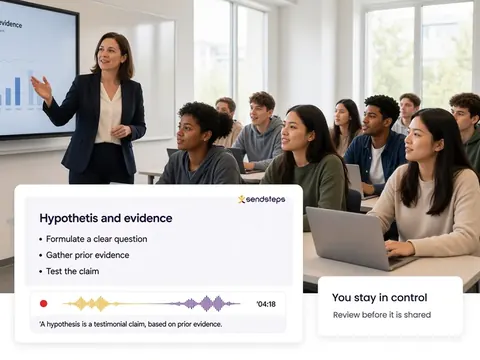
You choose what gets captured while you teach, what the text under the slides says, whether a voice is synthesised, and what you share. Recording a playback in your own voice is not available yet. Nothing in this flow runs on autopilot.
AI recommends, teachers decide
When you are ill and a colleague needs the lesson. When a student cannot be in the room. When someone wants to look back because they did not remember. When a colleague wants to see how you taught it. The lesson stays in your library, so you can edit it and share it again.
They open the same lesson on their own device, in their own time. They hear the teaching for each slide and answer the interactive questions from class. Those answers come back at lesson level. This helps when a student cannot be in the room. It does not replace being there.
The flow is built around teaching the lesson itself. Spoken text is captured per slide as you teach. You then review that text. You do not prepare a separate video of the session.
Yes. Spoken text appears under the slides. You read it, correct it, and only then is a voice synthesised. Transcription is not flawless. The review step is how you stay in control. AI recommends, teachers decide.
Not yet. Today you review the text under the slides and a voice is synthesised, or you use a royalty-free AI voice that does not use your recording. Playing the lesson back in your own recorded voice is not available yet.
Today they hear a synthesised voice after you have reviewed the text, or a royalty-free AI voice you picked. A playback of your own recorded voice is not available yet.
A voice recording sits in your account as lesson content. Sendsteps processes it on your instruction. Delete the lesson to remove the recording with it. After the agreement ends, remaining recordings are erased within thirty days. See the privacy statement.
Yes. Students who missed the lesson answer the same interactive questions as the group that was in the room. Their responses belong to that lesson.
Yes. Answers come back at lesson level, so Validate can include students who were not in the room, and Improve can work from a more complete picture.
Use the language you taught in. Transcription and synthesised speech follow the languages available in the voice-over feature when you share. Check the options in the editor.
Start from a lesson you already teach.