Steps
- Look at the presenter's screen. You see a QR code and a link.
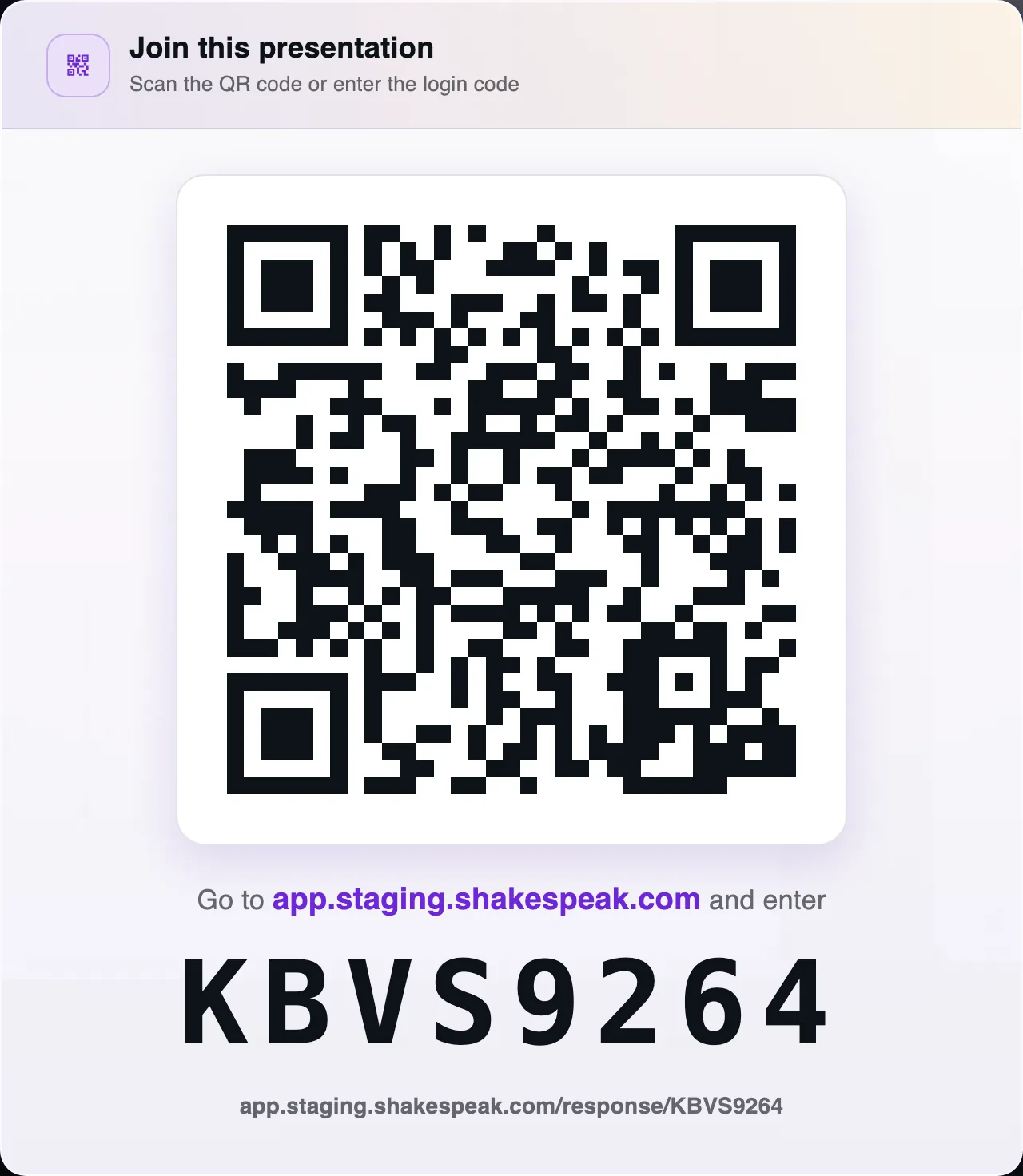
The panel is titled Join this presentation. - Scan the QR code with your phone. The session opens.
- Or open the link. The code is already in the link, so you do not type it. The session opens.
Only if you open the join page yourself
- Open the join page. The heading is Join session.
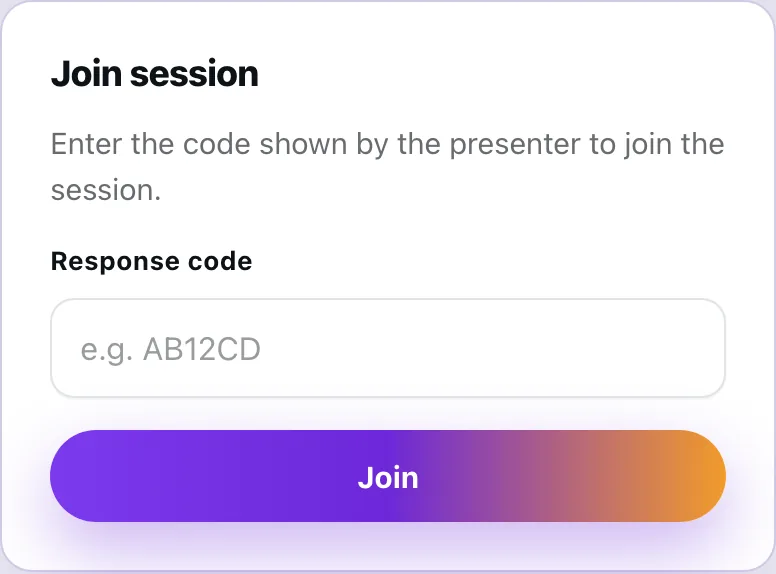
Type the code, then choose Join. - Under the heading you see Enter the code shown by the presenter to join the session.
- Type the code in Response code. The field shows an example, AB12CD.
- Choose Join. While it connects, the button says Joining…
What you see
You are in the session. Before a question starts, you see When the presenter asks a question, it shows here.
Only if you also have a personal code
The heading changes to Enter your login code. Under it you see This session requires your personal code after joining with the meeting code.
Type the code in Personal login code. Choose Continue.
Choose Back to meeting code if you need to enter the first code again.
What the presenter shows
While you present, press L. The panel Join this presentation opens.
Under the title it says Scan the QR code or enter the login code. The panel shows the QR code, the link, and the code. Point people to the QR code or the link.
Most sessions let anyone with that QR code or link join. Some sessions also ask for a personal code after that.
If it does not work
If the code is wrong, you see Session not found or invalid join code. Check the code and try again.
If sign-in fails, you see Login failed.
If a personal code is required, you see This session requires a personal login code.
If that personal code is wrong, you see That personal login code is not valid for this session.
If your join expired, you see Your session join expired. Enter the meeting code again.
If you already joined on another device, you see You signed in on another device. This session was closed.