Use a slide layout
Do this first. The question then sits in a layout made for it.
- Under the slide list, choose Add slide.
- The dialog title is Choose a layout. The field says Search layouts…
- Choose Interactive Question Slide.
- If the question should sit next to an image, choose Interactive Question Slide with Image instead.
- If you do not see that layout, choose Show all layouts. Under that card you see Browse everything in a dedicated view.
- The slide is added. On it you see Click to add question and Insert interactive question here.
- Click Click to add question. The Questions panel opens. Its title is Interactive questions.
Then follow the steps below to add this question type.
Steps
- Open the presentation in the editor.
- Choose Questions. A panel opens. Its title is Interactive questions.
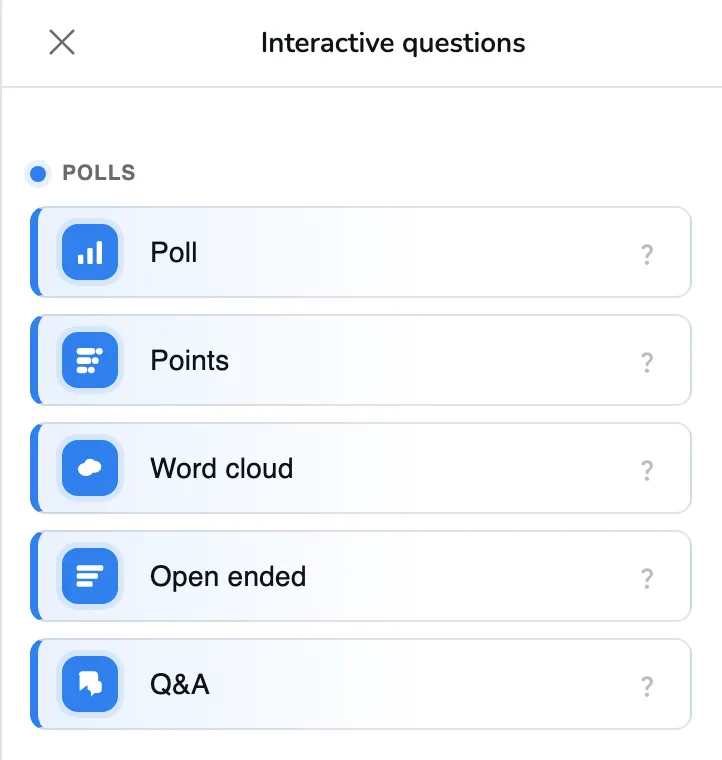
Poll is under Polls. - Open Polls, then choose Poll.
- The Poll appears on the slide you are on. You do not press Save.
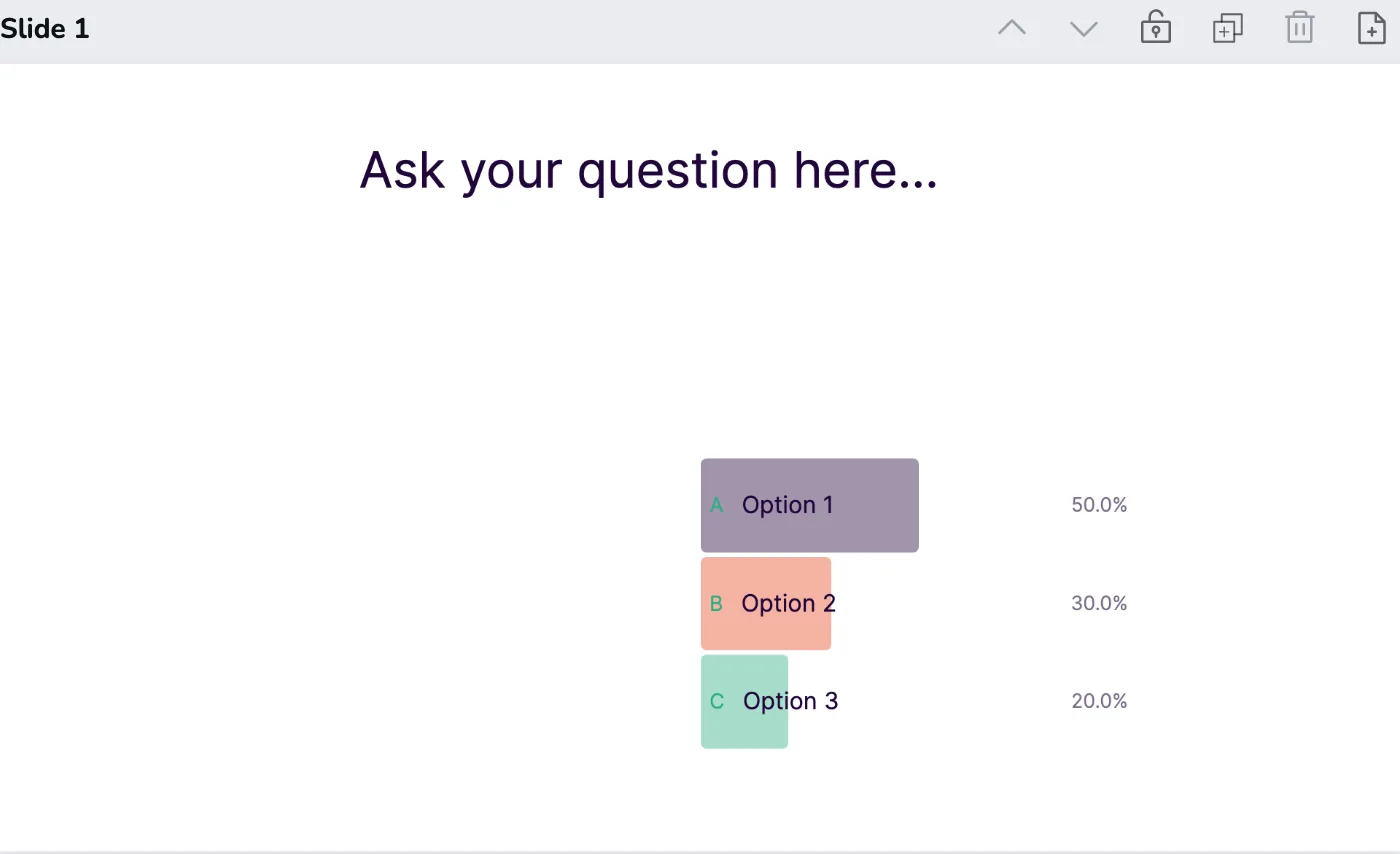
The question and the options sit on the slide. - Click the question on the slide. It starts as Ask your question here... Type your own question.
- In the sidebar, open Answer options. You see Option 1, Option 2, and Option 3. Under the heading it says Let your audience vote on one of the answers. Replace each option with your own text.
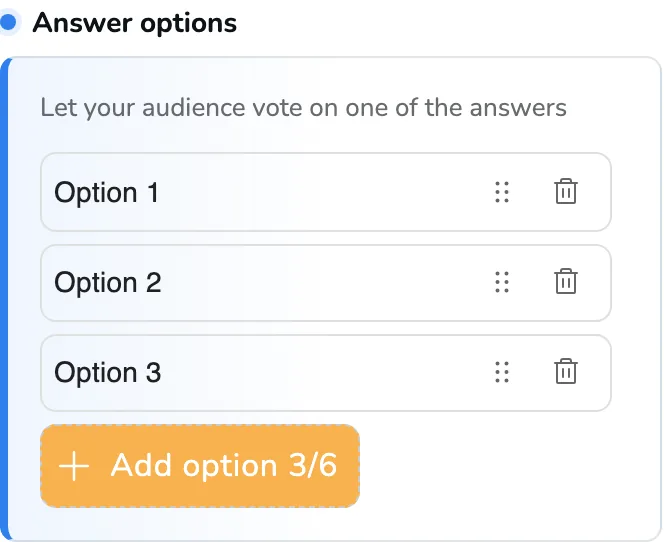
Add option shows the count, here 3/6. - To add an option, choose Add option. The button shows the count, for example Add option 3/6. You can have up to 6 options. You need at least 2. The remove icon works only when you have more than 2.
What you see
The question and the options sit on the slide. When you present live, you see how the votes split. By default that split is shown as Percentage (%).
What participants do
On their own device, each option is a button. The button shows a letter, such as A, and the option text.
They tap the option. That sends the vote. There is no Send button.
The screen then says Thanks for voting!
They cannot change the vote. If you turned on Participants can edit their answers, they also see Edit my vote.
When to use it
Use a Poll when you want a choice from the whole group. It works for a prior idea, an opinion, or the start of a discussion.
Let people answer on their own first. Talk about how the group splits. Then let them answer again if you want to see whether the group moved.
Settings
Open Settings on the Poll.
Maximum votes per participant is 1. Each person can pick one option. Raise the number if they should be able to pick more than one.
Allow multiple votes per answer option is off. One person cannot put more than one vote on the same option. Turn it on if the same option can take several votes from one person.
Time limit is off. People can answer for as long as the question stays open. Turn it on to close answers after 10 seconds, 20 seconds, 30 seconds, 1 minute, or 2 minutes.
Visualization type starts as Bar. These buttons change the chart. Their names are Bar, Vertical bar, Stacked bar, Ranking, Numeric, Donut, Pie, and Dots.
Show results as is Percentage (%). You see the split as a share of the answers. Switch it to Number if you want the count instead.
Under Show answers, a new Poll uses Show answers after a click. The split stays hidden until you click. Switch to Show answers immediately if you want the split to appear while people are still voting.
Participants can edit their answers is off. That is why people cannot change their vote. Turn it on and they see Edit my vote.
If it does not work
A slide can hold one interactive question. If it already has one, you see One question per slide. The message says Only one interactive question per slide is allowed. Choose Cancel to stay on this slide, or Add to new slide to place the Poll on a new slide.
If an option is longer than 80 characters, you see One option is longer than recommended. Shorten it. Long text shrinks on the slide and can be cut off.